
Windows user guide
System requirements, installation steps, and troubleshooting for Stand Desktop on Windows. Currently available to trial and subscribed customers, with general availability planned for the official launch.
System requirements
- Windows 10 (64-bit) or later. Windows 11 recommended
- x64 processor (Windows on ARM is not supported yet)
- Internet connection (transcription and AI responses run in the cloud)
- Microphone (speaker audio is also used when recording in-person meetings)
Installation steps
- Double-click the downloaded Stand-Setup.exe
- The installer runs automatically and Stand opens when it finishes (there are no install location or option prompts)
- Enter your email on the sign-in screen and log in from the link we send you
- Choose Allow when prompted for microphone access during your first meeting
Administrator rights are not required. Stand installs into your user folder, so on managed PCs you may be able to install it without IT approval (please follow your company policy).
If you see "Windows protected your PC"
If a SmartScreen warning appears when you run the installer, you can proceed as follows. Before continuing, always confirm the download came from downloads.yourstand.ai.
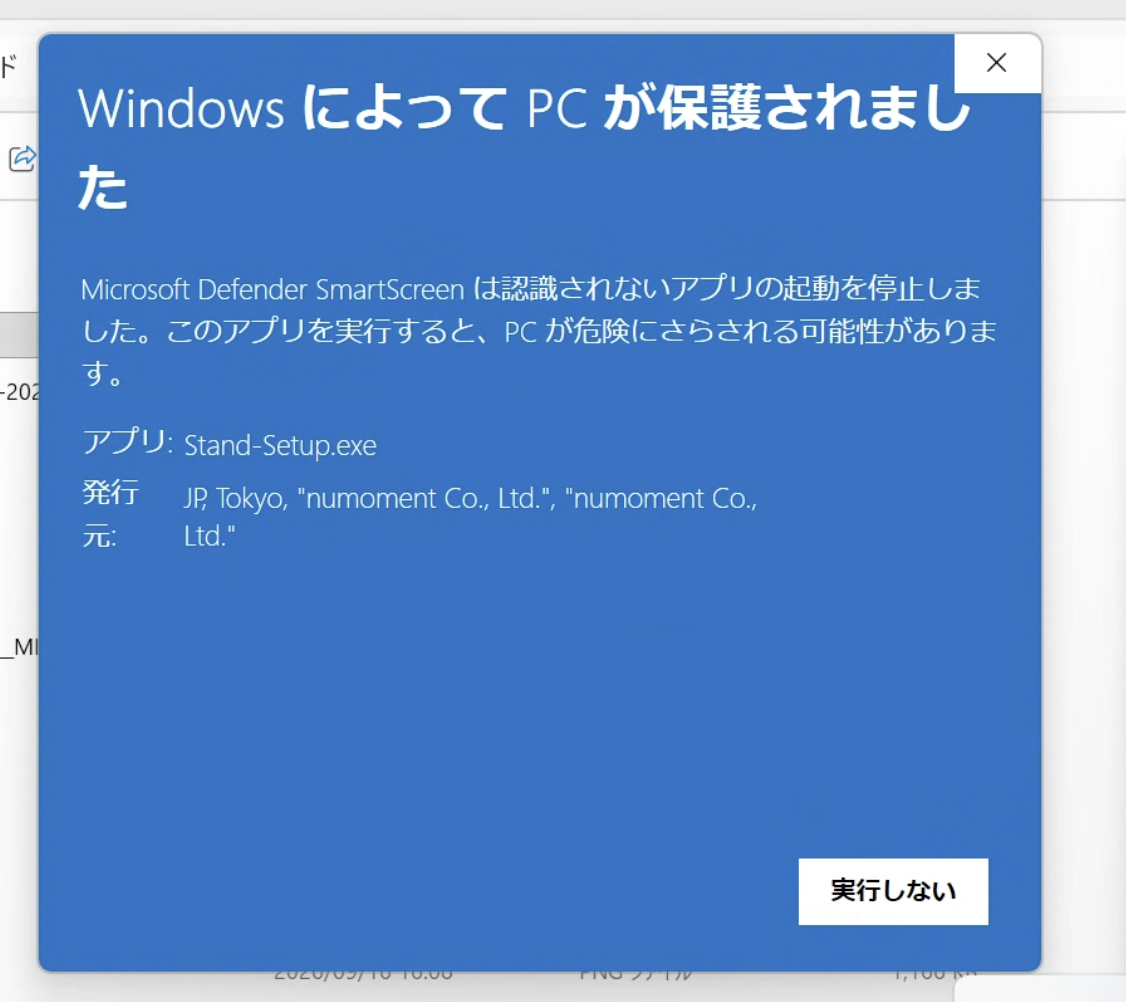
- Click "More info" in the warning dialog
- Check the publisher shown and click "Run anyway" (in the general release, code signing shows the publisher as "Numoment")
If only a "Don't run" button appears
If there is no "More info" link and only "Don't run" is available, your PC's SmartScreen reputation setting may be set to "Block". Try one of the following.
Method 1: Unblock the file from its Properties (easiest)
Right-click Stand-Setup.exe → "Properties" → check "Unblock" at the bottom of the "General" tab → "OK". Then run it again.
Method 2: Unblock it with PowerShell
If the "Unblock" checkbox does not appear in Method 1, run the following command in PowerShell, then run the installer again (the path below works as-is if you saved it to your Downloads folder).
Unblock-File -Path "$env:USERPROFILE\Downloads\Stand-Setup.exe"Method 3: Change the SmartScreen reputation setting to "Warn"
Open "Windows Security" → "App & browser control" → "Reputation-based protection settings", and change "Check apps and files" from "Block" to "Warn". This restores the usual "More info → Run anyway" dialog.
SmartScreen warnings can appear until enough download reputation has built up, regardless of code signing. As adoption grows, the warning will appear less often.
Permissions (differences from macOS)
On macOS you must grant Screen Recording and Accessibility permissions on first launch. On Windows, only microphone access is needed.
- Microphone: go to Settings → Privacy & security → Microphone and turn on access for Stand
- No screen recording permission is required. Stand never records your screen — only audio
Updates
For now, when a new version ships, run the latest installer again to update (it installs over the existing version and keeps your meeting records and settings). Automatic updates are in development; we will update this page once they ship.
How to uninstall
- Open Settings → Apps → Installed apps
- Find "Stand Desktop" in the list
- Choose "Uninstall" from the menu on the right
Uninstalling removes locally stored meeting records, settings, and sign-in data, as well as registry entries Stand created on Windows (such as the startup launch setting). Export any reports you need beforehand.
Troubleshooting
- No transcript appears
- Microphone access may be off. Go to Settings → Privacy & security → Microphone, turn on access for Stand, and restart the app. Also check that your meeting app has not switched to a different microphone.
- My meeting is not detected automatically
- Check that a Zoom, Microsoft Teams, or Google Meet window is open. Browser-based meetings can be detected late when the tab is in the background. You can always start a session manually from the Stand window.
- Installation or launch fails
- Corporate antivirus or EDR software may be blocking the installer. Ask your IT team to allow downloads.yourstand.ai and Stand Desktop, or contact sales@numoment.co.jp.
For IT administrators
The general release installer will be code-signed and published by Numoment, Inc. We publish a SHA-256 checksum for every release as a .sha256 file next to the download URL so you can verify binaries before deployment. Contact sales@numoment.co.jp with questions about network requirements or data handling.